Showing posts with label Windows 10. Show all posts

Saturday, May 26, 2018

How to download and run Eclipse IDE?

What is Eclipse?

Eclipse is an integrated development environment for Java and other programming languages like JavaScript, C, C++, Python, Perl, etc. Eclipse is mostly written in Java and its primary use is for developing Java application but with the help of plugins, it can be used to develop applications in other languages. 
It supports almost 45 different languages including Hindi and operating systems like Windows, Linux, Solaris, and macOS. 
Development environments provided by Eclipse includes Eclipse Java development tools (JDT) for Java and Scala, Eclipse CDT for C/C++, and Eclipse PDT for PHP, among others.

Before going to download section first, check whether a computer is running a 32-bit or 64-bit of Windows. So, go to Control Panel >System and Security >System. 

Downloading and Launching Eclipse

You can download the eclipse from https://www.eclipse.org/downloads/. After clicking on the link, the page will list different flavours of the eclipse. Download it according to the requirement. Following are the steps for downloading the latest version of eclipse i.e(eclipse oxygen).

1) Below is the eclipse download page which will be displayed when above link is opened in a web browser. Click on Download Packages. 

2)  On the right side, there would be dropbox from where an operating system such as Windows, Linux, and Mac OS can be selected. Generally, Java developers use Eclipse IDE for Java Developers. Click on 32-bit or 64-bit as per the system. 
3) Click on the download button. Eclipse would start downloading as a zip file. After downloading it, extract the contents of zip file using WinRAR tool or use any other tool of your choice.
4) Eclipse named folder would have been created after extracting the zip file. Click on the folder. To launch the eclipse double click on the eclipse.exe file. 
5) As the Eclipse starts, you will need to select the workspace where all the data will be stored. You can customize the path or let it remain the default.
6) Click on Launch and you are all set to code in eclipse.

Don't forget to share and comment on the post. Happy Coding!!
Your feedback can help us to make this blog better. Thanks!!

Saturday, February 10, 2018

How To Increase RAM Using USB/Pendrive In Windows

Hi guys, In this post I would turn my normal USB flash drive into an extra virtual RAM.

For work or play games on PC/Laptop, there comes a point when we need to increase the RAM. The following problems can be faced by a person when he/she wants to increase the RAM. What if there is no extra slot on your mother board to put a new RAM or you don't have enough money to buy a new RAM. 

So, in order to overcome both the problems, we do have an alternative way to increase the RAM which is known as ReadyBoost. I know this trick is pretty old and it's awesome that if you know it. But some people are still not aware of this trick.   

What is ReadyBoost? 

ReadyBoost is a disk caching software component developed by Microsoft for Windows Vista and included in later versions of the Windows operating system. 
ReadyBoost is a feature in Windows 10, Windows 8, Windows 7, and Windows Vista where the operating system improves system performance by dedicating unused hardware space as virtual RAM - the SFCACHE file holds the data stored in this virtual RAM space.

Here, are the steps to set up ReadyBoost on your USB drive and speed up Windows 7, 8 & 10:

1) Insert Flash Drive. Delete all the data from the flash drive.

2) Now, Right Click on your pen drive and Open Properties.

3) Browse to ReadyBoost Tab. Next, click 'Use this device' and reduce your current memory space. Let's suppose, if the space is 3700 MB, then reduce it with approx ~100-200 MB for better performance.


4) Click 'Apply' and then 'OK' to apply the changes.

5) You are almost done!. Now, double click to open the USB Drive(I:). If configuration was successful, then "Ready Boost Cache File" would have been created. 

6) Restart your computer. 


Note:- If you don't want to use USB flash drive as RAM then, follow steps 2 & 3 and click on "Do not use this device ". Apply the settings and click "OK".

Saturday, January 6, 2018

10 Amazing windows shortcuts that everyone should know and use


Hi everyone, In this post I have listed the 10 Amazing windows shortcuts that you should learn and start using them right now. 

Windows shortcuts help you to work fast and efficiently, instead of performing laboriously and in more boring ways through the mouse & menus. 

So, go through the below list of windows shortcuts and try to use them as much as you can so, that it helps you to increase your efficiency.

1) CTRL + SHIFT + T  
Open any web browser such as Google Chrome, firefox, etc and use the given keys combination to reopen the previous closed tabs in that browser. Yes, just try it.This is my favorite shortcut and I know it would become yours too.

2) CTRL + TAB
Use this shortcut in a web browser to switch the tabs in a forward direction.

3) CTRL + SHIFT + TAB
This keys combination does opposite of above one. It will switch the tabs in backward direction.

4) CTRL + SHIFT + N 
Just create a new folder with this keys combination. 

5) WINDOWS KEY + D
Shows desktop. This helps you to move to main desktop immediately by minimizing all the opened windows.


6) WINDOWS KEY + TAB 
The combination is similar to ALT + TAB to switch between the windows in a more pleasing way. Some people think it is slightly slower so, they prefer using the other one key combination or mouse. But people still train them over both alternatives for more beautiful switching effect and also due to its additional functionalities i.e, helps you to create, view & close the virtual desktops.  

7) WINDOWS KEY + PRT SC  or ALT + PRT SC
Taking screenshot in windows was just annoying before this shortcut. To capture your entire screen and automatically save the screenshot, tap the Windows Key + PrtScn. Your screen will briefly go dim to indicate that you've just taken a screenshot, and the screenshot will be automatically saved in the Pictures > Screenshots folder.

*PRT SC - print screen key

8) WINDOWS KEY  + E
Opens File Explorer.

9) WINDOWS KEY + "+" or "-"
This is an awesome and easy shortcut to zoom in and out of a screen. It opens up the magnifier app directly to zoom in and zoom out of a screen.

10) a)WINDOWS KEY + CTRL + D
Creates a new virtual desktop for you.  
b)WINDOWS KEY + CTRL + LEFT/RIGHT 
Use this key combination to change from desktop to virtual desktop or vice-versa.
c)WINDOWS KEY + CTRL + F4
Closes the virtual desktop. Just move to the virtual desktop and use this combination to close it. 

Thanks guys for reading this post. Don't forget to drop your valuable comments below. Also, mention any topic on which you think i should write a post. 

Tuesday, October 4, 2016

10 New Features Of Windows 10 Anniversary Update that you must know


Windows 10’s second big update, dubbed the “Anniversary Update”, is finally here. This is a huge update that touches every corner of the operating system. Free for all Windows 10 users, the update is shaped by feedback from Microsoft's Windows Insider program.

If you don’t have it yet, try checking for updates in Windows 10’s Settings > Update & Security. You can also start the update manually  from Microsoft’s support page here.

1)Cortana—Your Digital Agent


Cortana is ready to help you in more places in Windows 10, including the lock screen. When your device is locked, you can still check your calendar ("What's my schedule for tomorrow like?") or ask Cortana important questions ("Can you beatbox?").

And forget about writing tasks on your hands just to remember, say, your dad's birthday—create reminders based on location, time, and even people. Cortana can help you remember to wish your dad a happy birthday at a specific time, or remind you to pick up a cake when you're at the grocery store.

2)Rule The Web With Microsoft Edge

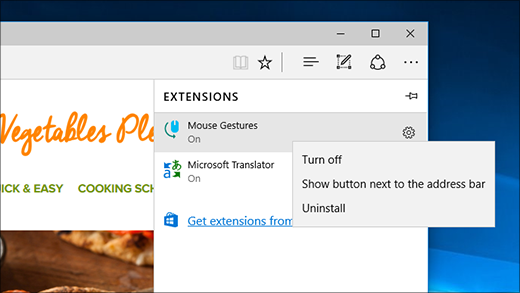
The context menu for extensions in Microsoft Edge

Microsoft Edge has so many updates, we need a list to cover them all:

  • Use Extensions to personalize and protect your browsing with add-ons like Office Online, Microsoft Translator, and more.
  • Enlist Cortana to show you similar image suggestions on Bing searches, or even the lyrics to a music video you're watching.
  • Pin individual tabs to the Start screen for easy access.
  • If you have a touchsreen device, browse more briskly by swiping left/right to go back/forward to different webpages.

3)Windows 10 Gets a Dark Theme (and More Theme Options)

With the Anniversary Update, you can now choose between light and dark modes in Settings > Personalization > Colors. Its designed for Windows Store apps, but not every app will listen to this setting and obey it–some apps, especially those from third-party developers, control their own theme settings. This also means File Explorer will remain as blindingly white as ever. You can also choose color of your own choice for start, taskbar and action center.

4)Get Creative With Windows Ink


Windows Ink puts the power of Windows in the tip of your tablet pen, enabling you to write on your device just like you do on paper, create sticky notes, draw on a whiteboard, and easily share your analog thoughts in the digital world. Windows Ink is integrated into apps like Maps, OneNote, Microsoft Edge, and Office.

5)Simpler Start Menu


Microsoft has changed the way Windows 10’s Start menu works. The “All Apps” option is now gone–you’ll just see a full list of installed applications at the left side of your Start menu. Your most frequently used and recently added applications will appear at the top of this list. It’ll show the three most recently added applications instead of a single one, and you can expand this list to see more applications sorted by when you installed them.

Important buttons like the File Explorer, Settings, and Shut Down buttons are now always located at the left side of the Start menu.

OneDrive users will be happy to know that they can now search all their files–both files on the PC and files stored online in OneDrive–from the Start menu.

6)Improved Notifications In Action Center

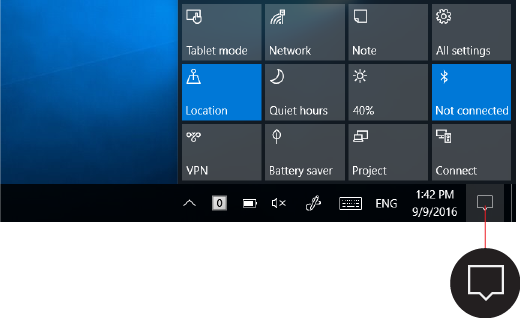
Action center
Action center has moved to a new location in the far right corner of the taskbar, and sports a new look that gives you the power to organize your notifications however you see fit.

You no longer need to open action center to see how many notifications you have—the number on the action center icon(highlighted above) shows you how many notifications are waiting for you. Other apps pinned to the taskbar can also show the number of notifications you've missed. 

7)Do More On The Lock Screen


Cortana isn't the only new feature on the lock screen—you can now play music while your device is locked to control the action from start to stop. Media controls appear at the bottom right corner of the lock screen, along with a picture of the album art from the song currently playing.

8)Windows hello for apps and websites


Fingerprint sensors have been a huge convenience on phones and tablets, and Windows currently supports it for logging into your laptop too via Windows Hello–provided it has the necessary hardware. But in the Windows 10 Anniversary Update, Windows Hello will support Windows apps and Microsoft Edge, so you can securely log into apps and web sites using your fingerprint as well–not just Windows itself.

You can also sign in to your PC using Windows Hello companion devices, such as Microsoft Band and some Windows 10 phones.

9)The Store Is Redesigned


The new Windows Store design includes features that should appeal to gamers in particular. It's aligned more closely with the Xbox Store, and now offers game bundles and subscriptions. For everyone else, the new design does make it a bit easier to get to the top apps, music, and movies. The Store's download progress indicator is now bigger and clearer, too.

10)Windows Defender Gets Better for Security


 You can also schedule regular scans, and use Cloud Protection and Automatic Sample Submission for quicker threat response. PCMag's security analyst, Neil Rubenking, notes that Defender has improved its performance on independent lab tests, but he still recommends third-party antivirus for superior protection.

Note- It may take half an hour or more to update your windows 10 and your computer might restart several times, don't panic and update it in free time. 

Featured